ST-Link programming kit
To update the TSDZ2/TSDZ2B controller firmware, you need a TSDZ2 ST-Link V2 USB Programming Kit Open Source (OSF).
Firmware update
To update the firmware, you need a Windows computer on which the required software can be installed.
1. Download and install Java Runtime Environment
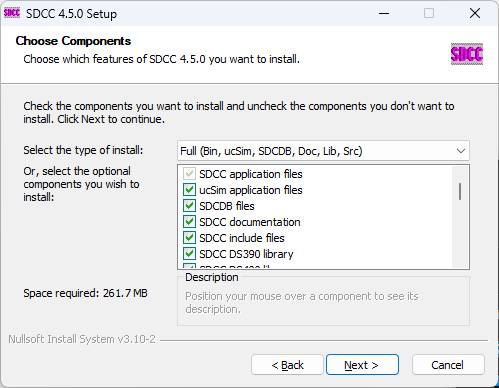
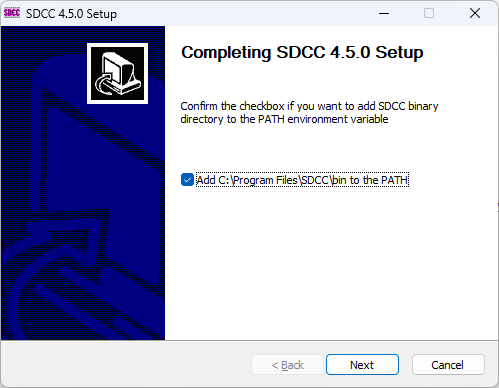
2. Download and install SDCC. Select the "Full" installation type. If you don’t want to install the entire library, you must select at least "SDCC include files" and "SDCC STM8 large model library". After installation, make sure the option "Add ...\SDCC\bin to the PATH" is checked.
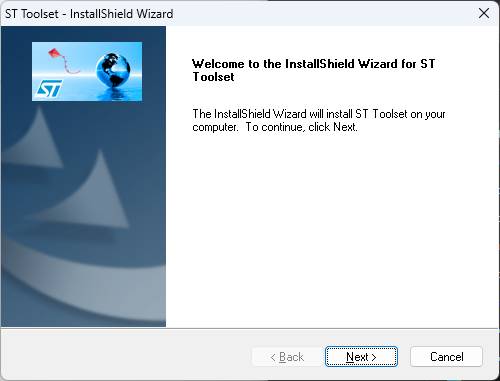
3. Download and install ST Visual Development. It is recommended to install it directly on the C: drive, but you can also use the default install path if it is set to C:\Program Files (x86). The file STVP_CmdLine.exe must be located in one of these locations (e.g. C:\STMicroelectronics\st_toolset\stvp\STVP_CmdLine.exe). Alternatively, you can add a different path in the file _TSDZ2-Smart-EBike/src/controller/flash.bat
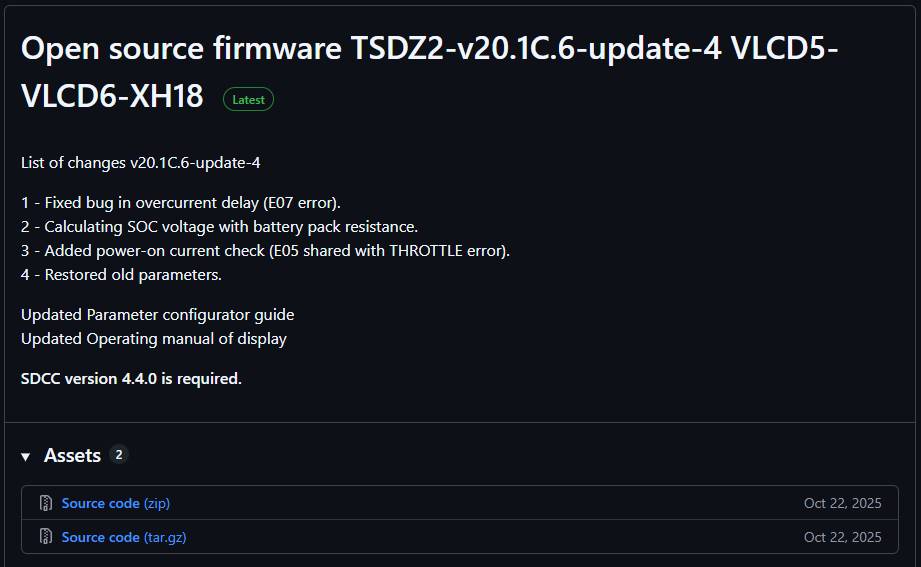
4. Download and extract the latest version of the open source firmware (OSF) from the official TSDZ2 OSF GitHub repository (you have click on the Source code (zip) link). It’s recommended to extract the files directly to the C: drive.

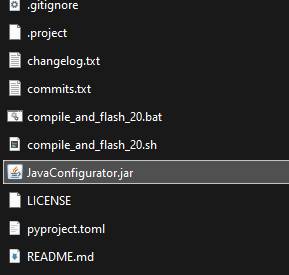
5. Start the OSF Java configuration tool by double-clicking JavaConfigurator.jar in the extracted folder
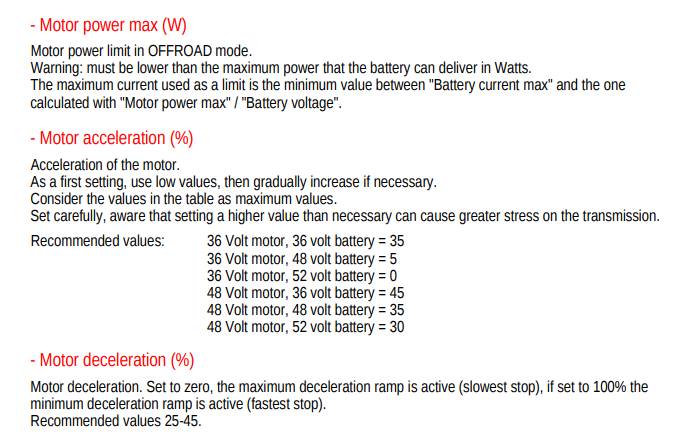
6. In the manuals folder you will find guides for the configurator (e.g. EN-Parameter_configurator_guide-TSDZ2-v20.1C.6-update-4.pdf). The descriptions of the most important parameters are highlighted in red
7. Set your parameters in the configurator. You can use the default settings as a base for further configuration. You can select the default settings from the list in the lower-right corner (Default_Settings_TSDZ2_48V.ini, Default_Settings_TSDZ2_36V.ini). When everything is set, click the "Compile & Flash" button
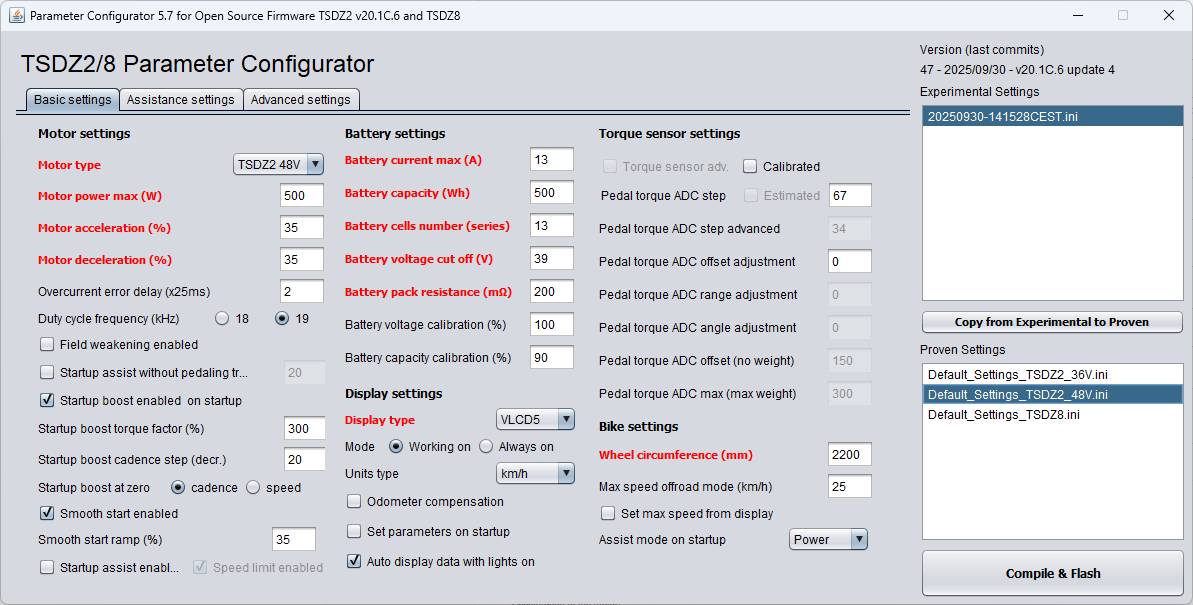
8. In the new window, the firmware should start compiling with your settings. After it finishes, a message will appear asking you to press any key to flash the firmware to the controller. Make sure the ST-Link programming kit is connected to the TSDZ2 motor controller. The battery should be disconnected from the motor controller. After a successful update, the window will display a message indicating that the operation was successful